 Projects
 Table of Contents
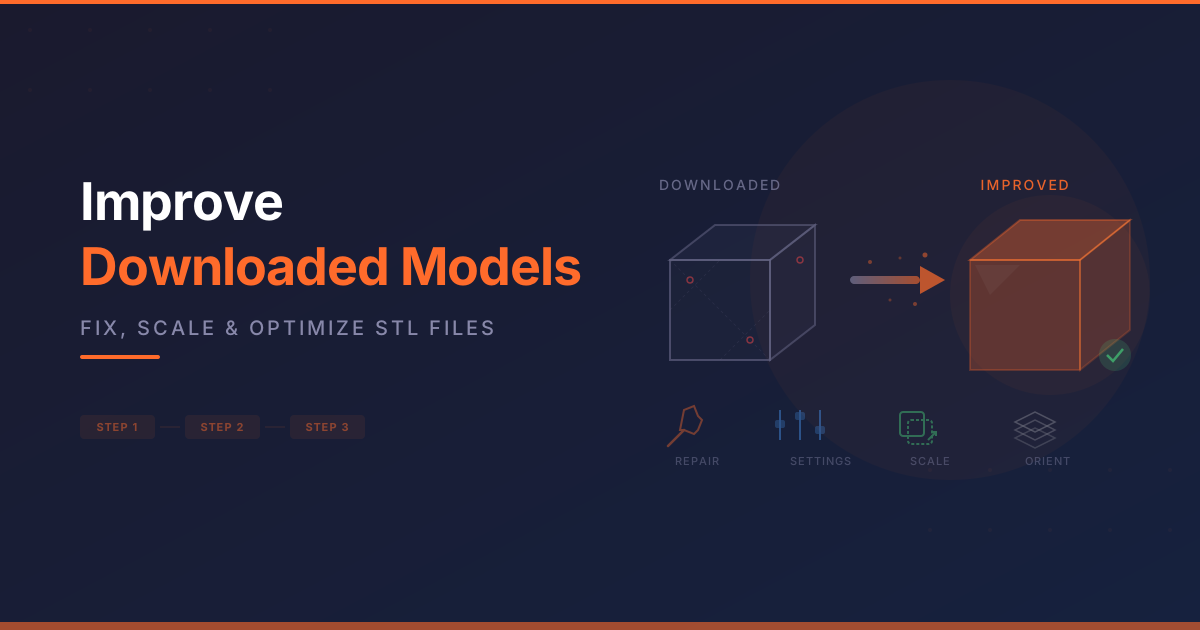
You found an awesome model on Printables, Thingiverse, or MakerWorld. You slice it, hit print, and… it’s okay. Not great. Maybe the surface is rough. Maybe the overhangs failed. Maybe it took 14 hours when it should have taken 6.
The truth is, most downloaded models aren’t optimized for YOUR printer, YOUR filament, or YOUR use case. Here are 10 things you can do before clicking print to get dramatically better results.
1. Check and Fix the Mesh First
Downloaded STLs aren’t always clean. They can have non-manifold edges, holes, inverted normals, or overlapping faces that cause slicing errors.
How to fix it:
- Bambu Studio / PrusaSlicer: Built-in auto-repair on import (handles most issues)
- Meshmixer: Free, powerful mesh repair tools (Fix → Auto Repair All)
- Windows 3D Builder: Import the STL, it’ll auto-fix and re-export
If your slicer shows weird artifacts or missing sections, mesh repair is always step one.
2. Scale It to the Right Size
Designers don’t always design for the same scale you need. A phone stand designed for an iPhone 14 won’t fit an iPhone 16. A wall hook rated for 5 lbs might need to be beefier for your use.
Pro tip: Don’t just scale uniformly. If you need a part stronger in one direction, scale only that axis. A wall hook that’s 1.5x thicker on the Z axis is dramatically stronger without wasting material on width and length.
3. Orient for Strength, Not Just Printability
Layer lines are the weakest point in any FDM print. A part oriented with stress perpendicular to layer lines will snap easily. The same part rotated 90° can be nearly unbreakable.
Rule of thumb:
- Orient so that the primary load direction runs along the layer lines (X/Y), not across them (Z)
- Hooks, brackets, and clips should have the load parallel to the build plate
- If the model can’t be oriented for strength, increase wall count instead
4. Adjust Wall Count and Infill for Your Use Case
Most downloaded models suggest generic settings. But a decorative figure and a functional bracket have completely different needs.
| Use Case | Walls | Infill | Pattern |
|---|---|---|---|
| Decorative / display | 2-3 | 10-15% | Grid |
| General purpose | 3-4 | 15-20% | Gyroid |
| Functional / load-bearing | 4-5 | 25-40% | Cubic or Gyroid |
| Maximum strength | 5+ | 40-60% | Cubic |
For most functional prints, more walls matter more than more infill. Going from 2 walls to 4 walls often doubles strength. Going from 15% to 30% infill adds maybe 20%.
5. Add Your Own Supports (Don’t Trust Auto)
Auto-generated supports work okay, but manual support placement is almost always better. You’ll use less material, have cleaner surfaces, and reduce post-processing time.
In Bambu Studio:
- Switch to the support painting tool
- Paint supports ONLY where they’re actually needed (overhangs >45°)
- Use tree supports for organic shapes - they use less material and break away cleaner
Trick: If a model has a small overhang that barely needs support, try increasing overhang angle threshold to 50-55° first. Many printers handle moderate overhangs without any support.
6. Split Multi-Part Models for Better Results
Some models are designed as one piece but print much better as separate parts glued together. Look for:
- Sections with extreme overhangs that would need heavy supports
- Areas where you want different colors or materials
- Parts that would benefit from different orientations
Tools for splitting:
- Meshmixer: Plane Cut tool
- Bambu Studio: Cut tool (built-in)
- Blender: Boolean modifier
After printing, join with CA glue (super glue) for rigid bonds or flexible adhesive for parts that need some give.
7. Use Adaptive Layer Heights
Most slicers support variable layer height - thicker layers on simple vertical sections, thinner layers on detailed curves and overhangs. This can cut print time 20-40% with no visible quality loss on the detailed parts.
In Bambu Studio: Enable “Adaptive layer height” in the quality settings. The slicer automatically adjusts layer height based on geometry.
This is basically free time savings. There’s no reason not to use it on most prints.
8. Modify the Design in TinkerCAD or Blender
Don’t be afraid to modify downloaded models. Common useful modifications:
- Add mounting holes - Drop in cylinders and subtract them for screw holes
- Add fillets/chamfers - Round sharp edges for better look and feel
- Thicken thin sections - If a part looks fragile, select those faces and extrude outward
- Add text or logos - Personalize with embossed or debossed text
- Remove unnecessary detail - Simpler geometry = faster prints
TinkerCAD is free and perfect for simple modifications. Blender handles complex organic modifications. You don’t need to be a CAD expert to make useful changes.
9. Use the Right Filament for the Job
Downloading a functional part and printing it in basic PLA is like building furniture out of cardboard. It’ll work temporarily, but it won’t last.
Filament selection guide:
- PLA - Decorative items, prototypes, low-stress parts
- PETG - Functional parts, outdoor use, anything that needs heat resistance
- TPU - Flexible parts, phone cases, bumpers, gaskets
- ABS/ASA - High-temp, high-strength applications, automotive parts
- PLA 2.0 (SUNLU) - Stronger than regular PLA, great middle ground for functional PLA prints
And regardless of filament - dry it first. Wet filament ruins prints. A good filament dryer like the EIBOS Tetras makes a massive difference, especially with PETG and Nylon.
10. Run a Test Print at Scale
Before committing to a 12-hour print, run a small test:
- Scale to 50% and print a quick version to check fit and aesthetics
- Print just one section - most slicers let you cut the model and print a portion
- Print one of each variant - if you’re making multiples, dial in settings on one first
A 30-minute test print that reveals a problem saves you from a 12-hour failed print. Always test first on anything important.
Bonus: Post-Processing Transforms Prints
After printing, a few minutes of post-processing can turn a “decent” print into a showpiece:
- Sand with progressive grits (220 → 400 → 800) for smooth surfaces
- Prime and paint - filler primer hides layer lines, then spray paint for a professional finish
- Acetone vapor smoothing (ABS only) - gives a glossy, injection-molded look
- Epoxy coating - clear epoxy over PLA/PETG for a glass-smooth, durable finish
The Bottom Line
Downloaded 3D models are starting points, not finished products. Taking 10-15 minutes to check the mesh, orient for strength, tune your settings, and pick the right filament will transform your results. You’ll waste less material, have fewer failures, and end up with prints that actually look and function the way you want them to.
The best 3D printer operators aren’t the ones with the most expensive machines - they’re the ones who take the time to optimize before they print.
Sponsored
Ready to Print?
Browse our guides for more tips on getting the best results from your printer.
Browse All GuidesReady to Print?
Browse our guides for more tips, reviews, and step-by-step tutorials to get the most out of your 3D printer.
Browse All Guides